Mac
How to Make an Invoice on Mac with Numbers (Free Template)
Make an invoice on your Mac for free with the Invoice template in Apple Numbers: logo, client, items and totals, a PDF to send, and a reusable template.
Updated Steps checked on

You don't need paid invoicing software to bill a client from your Mac. Numbers, Apple's free spreadsheet app, has a plain Invoice template that adds up the totals for you. This guide fills it in step by step: your logo and business details, the client, the items, then a PDF to send and your own template for next time.
The example business (Juniper Lane Design Studio) and its client (Oak Street Bakery) are made up.
What you need
- Numbers. It's free on every Mac; if it's not in your Applications folder, get it from the App Store. This guide uses Numbers 15.4 on macOS 27.
- Your logo. A PNG with a transparent background looks best on the white page.
- Your business details, your client's details and what you're charging for.
1. Open the free Invoice template
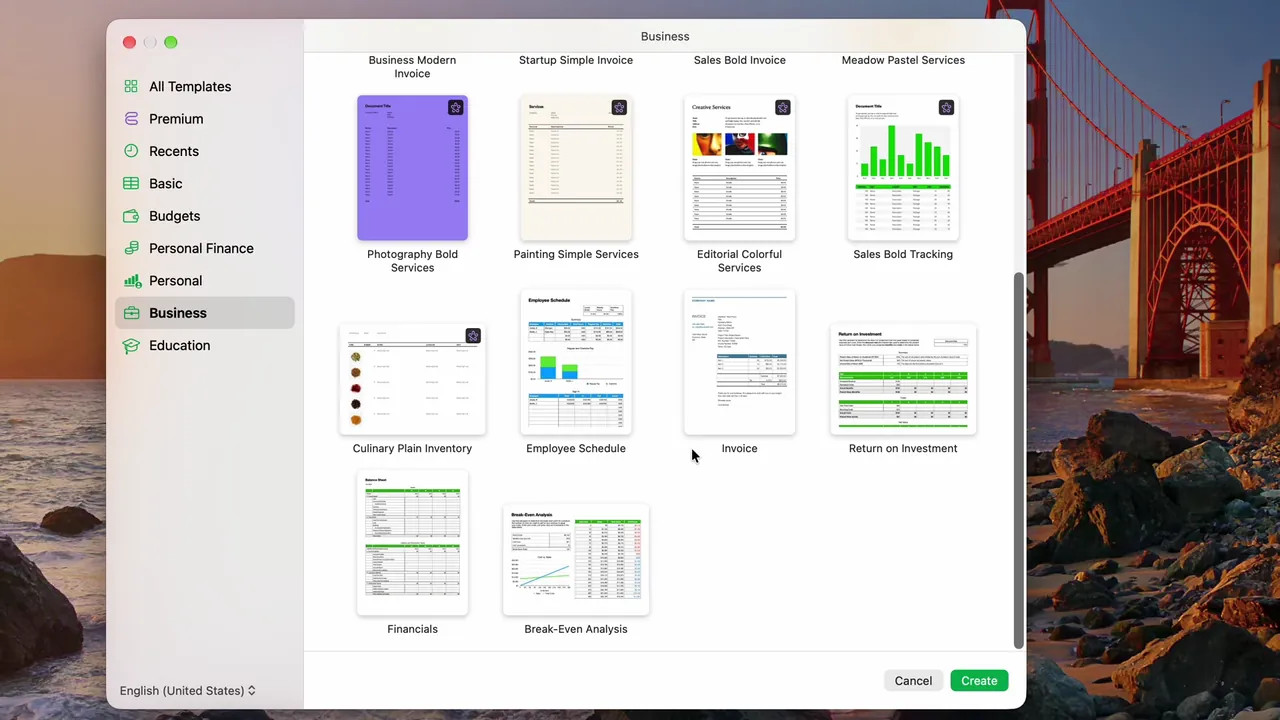
- Open Numbers. The template chooser opens.
- Click Business in the sidebar. Templates with a star badge are premium and need an Apple Creator Studio subscription.
- Scroll to the plain template called Invoice. It has no star, so it's free. Double-click it.
- Choose Window → Fill to see the whole invoice.
2. Add your business details and logo
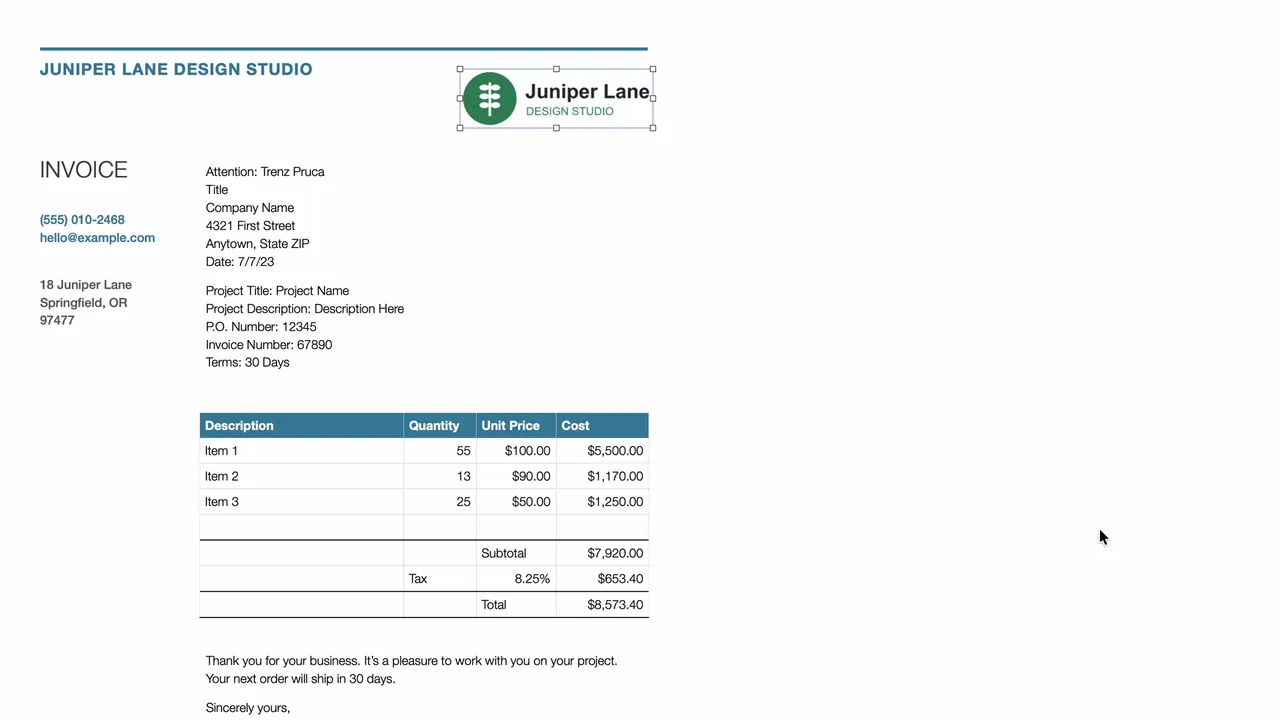
- Business name: double-click it, press Command-A to select all of it, and type your own.
- The other lines: double-click the first word, press Shift-Command-Right Arrow to select the rest of the line, and type over it. Do the same for your phone, email and address. If your clients need your website or a business number on the invoice, add a line for it.
- Logo: choose Insert → Choose File, pick your logo and click Insert. It comes in big: drag a corner to make it smaller (dragging a corner keeps its proportions), then drag it to the top right.
3. Add the client, date and invoice number
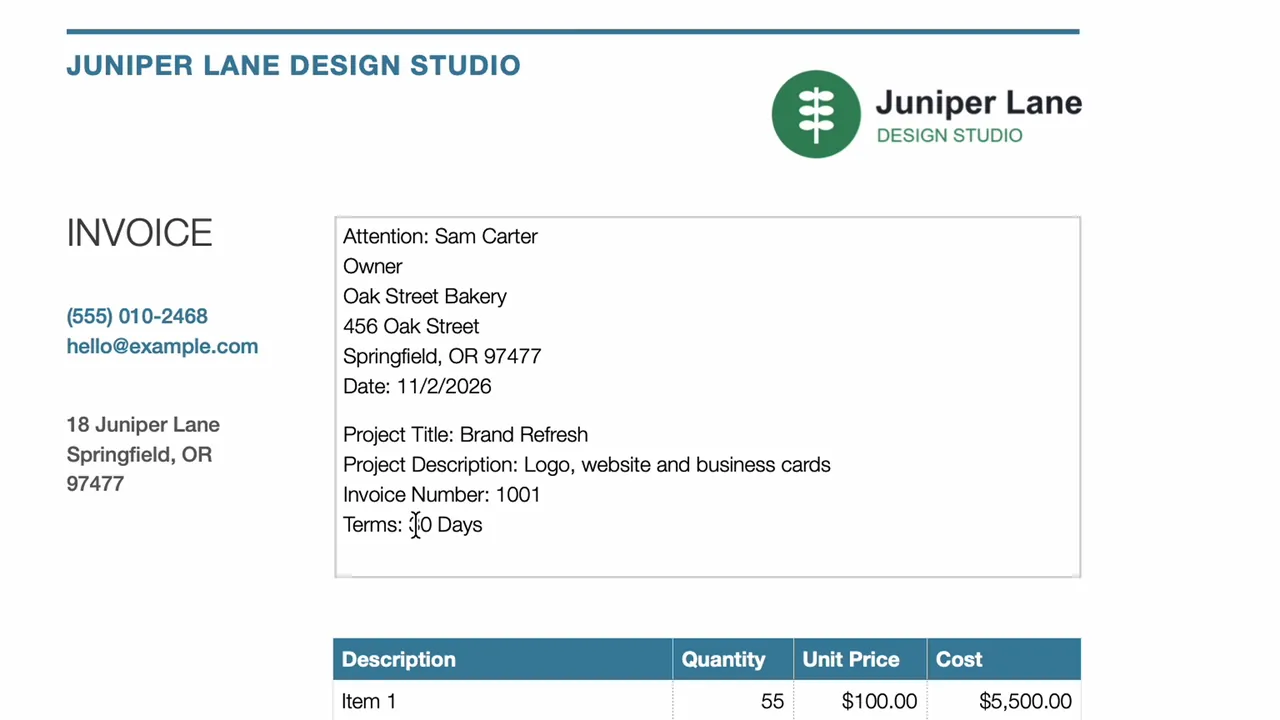
Use the same double-click and Shift-Command-Right Arrow shortcut on each line:
- Attention: the person you're billing, and their job title on the next line. For a bigger company, ask who handles invoices and put that person's name here.
- Company name and address: use the official name and address, so the invoice matches their records.
- Date, Project Title and Project Description: a clear description helps your client approve the payment, and helps you find the invoice later, for example at tax time.
- Invoice Number: give every invoice its own number and never reuse one. Many businesses start at 1001.
- P.O. Number: if your client didn't give you a purchase order number, delete the line.
- Terms: "30 Days" means your client has 30 days to pay. Change it if you agreed on something else.
4. Add your items (the totals calculate themselves)
- Click the first Description, press Command-A, and type what you're charging for.
- Press Tab to move to Quantity, and Tab again for Unit Price.
- Press Return to start the next row.
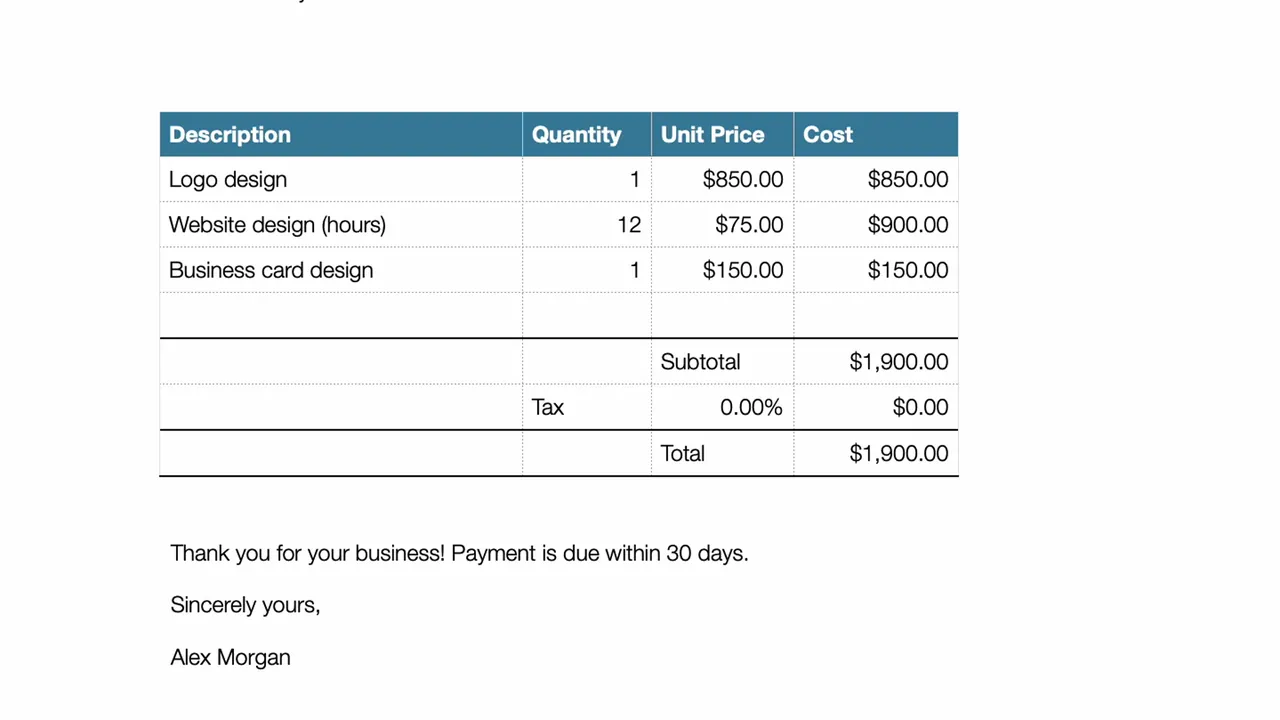
Cost is quantity × unit price, and Subtotal, Tax and Total are formulas, so they update as you type. The example's items:
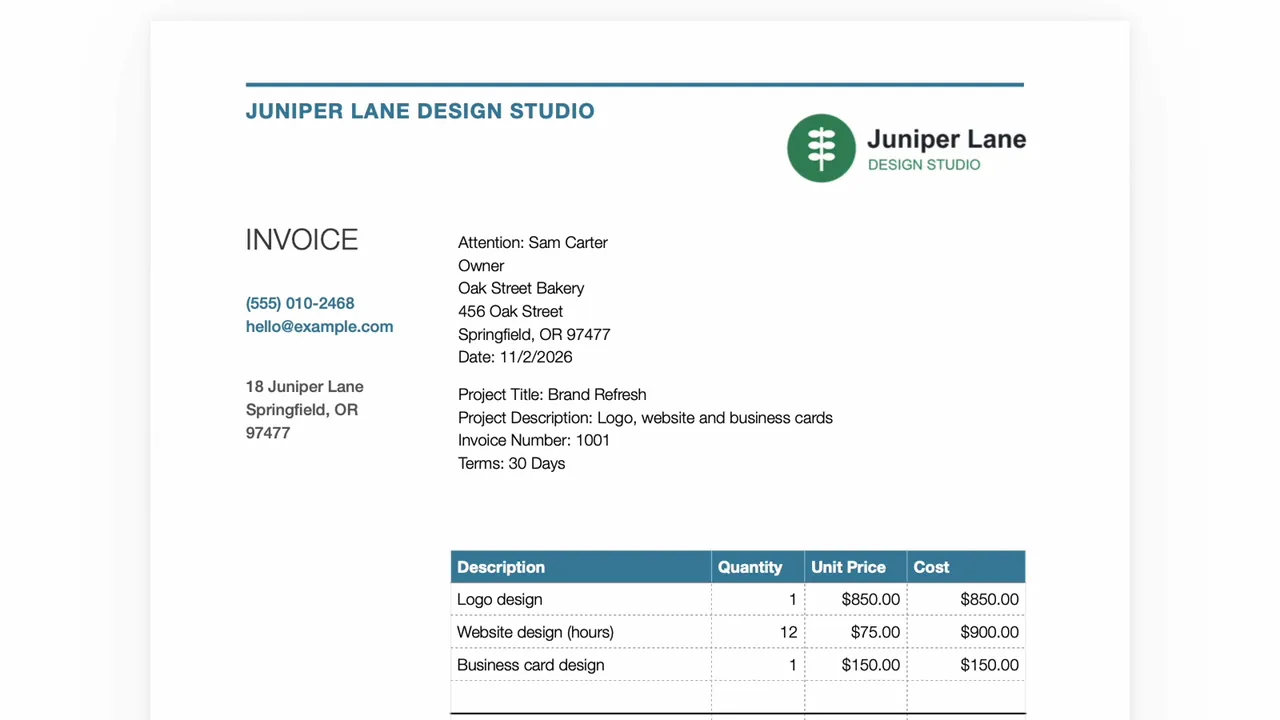
| Description | Quantity | Unit price | Cost |
|---|---|---|---|
| Logo design | 1 | $850.00 | $850.00 |
| Website design (hours) | 12 | $75.00 | $900.00 |
| Business card design | 1 | $150.00 | $150.00 |
| Total | $1,900.00 |
The template's tax rate is 8.25%. Click it and type your own sales tax rate, or 0 if you don't charge sales tax (like this example).
At the bottom, triple-click the note to select it and say when you'd like to be paid. It's also a good place for how to pay you, like a bank transfer or a payment link. Then double-click the name below it and sign with your own.
5. Export it as a PDF
- Choose File → Export To → PDF…
- Keep Image Quality on Best.
- To email it right away, Send a Copy lets you pick Mail. To keep a file, click Save…
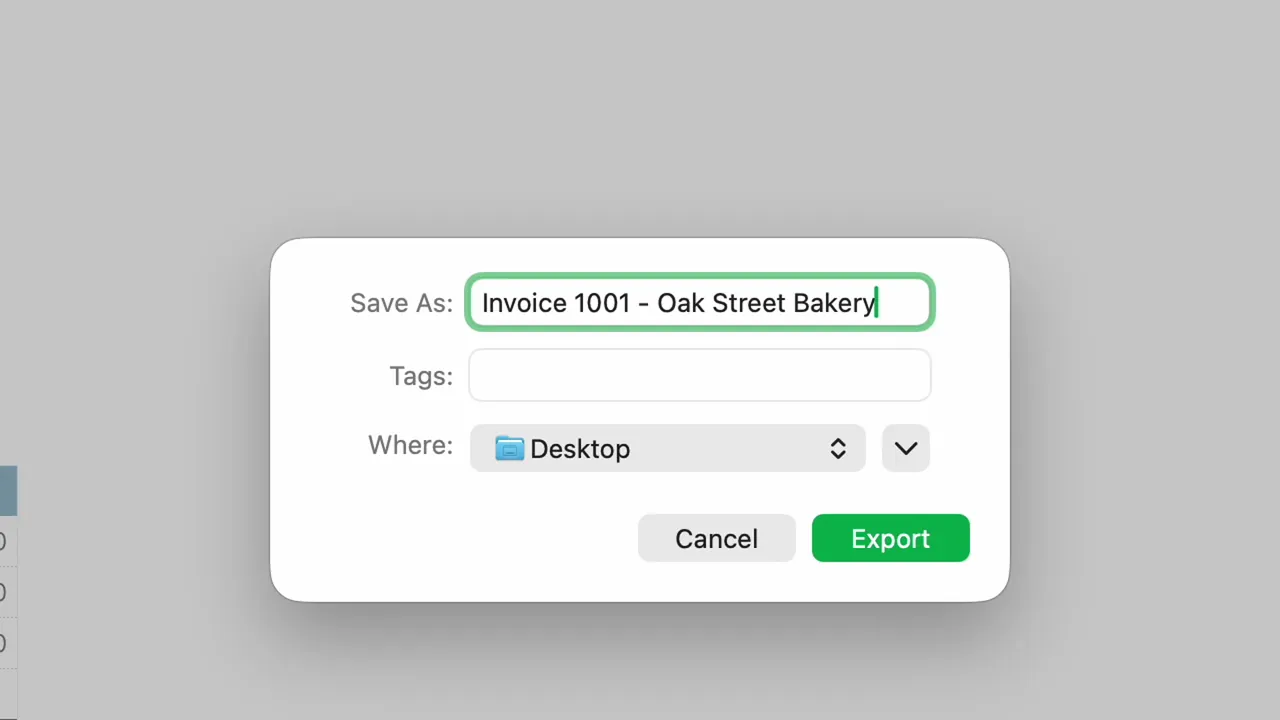
- Name it with the invoice number and the client, like Invoice 1001 - Oak Street Bakery, and click Export.
6. Check it and send it
Open the PDF and check it once more. A PDF looks the same on any computer or phone, so your client sees exactly what you made: your logo, both addresses, the items and the total. Attach it to an email, and you're done.
7. Save it as your own template
This step saves you time next month.
- Go back to Numbers and choose File → Save as Template…
- Click Add to Template Chooser and name it, like your business name and "Invoice".
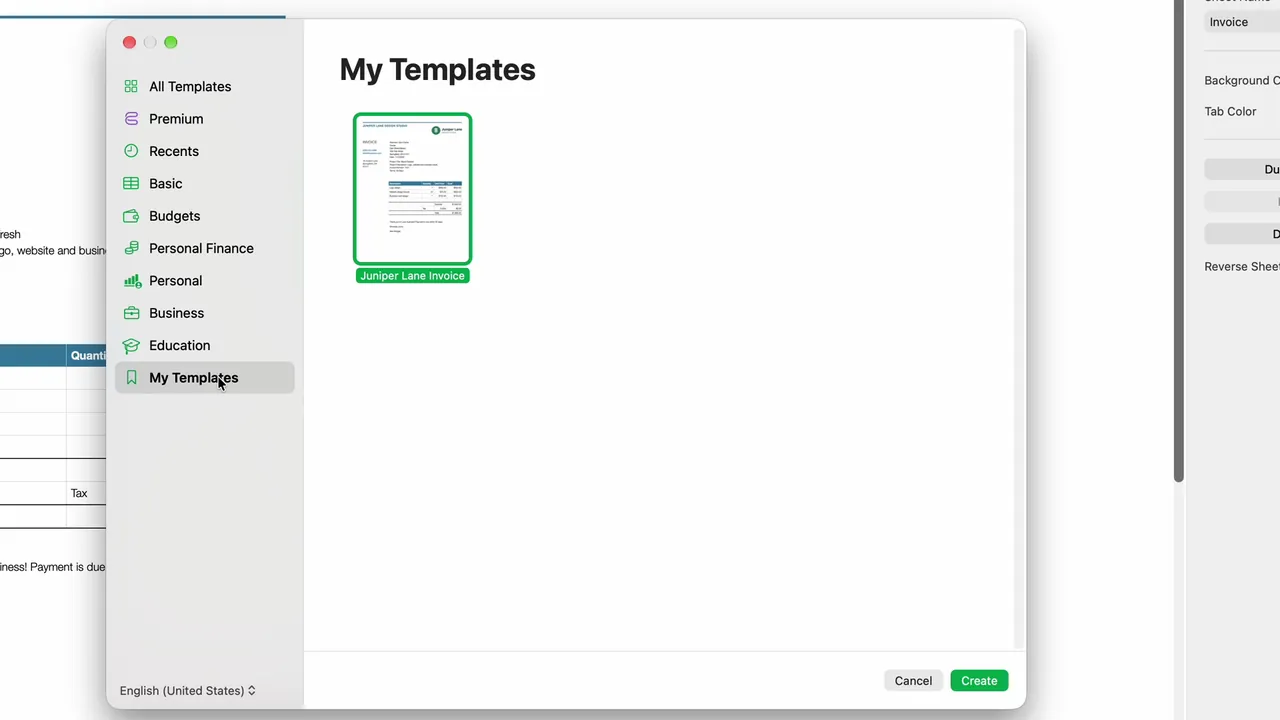
- Next time, choose File → New and open My Templates. Your logo and details are already there, so you only change the client, the number, the date and the items.
Good habits for invoices
- Number invoices in order and never use the same number twice.
- Keep a copy of every PDF you send.
- Put your payment details and the due date on every invoice, so your client doesn't have to ask.
